
📱
Active mobile number
Use a mobile number you can access for verification code or account checks.
Use this 69JL register guide before creating an account. It covers mobile number checks, password setup, verification code issues, invitation code reminders, and safe access tips for users in the Philippines.
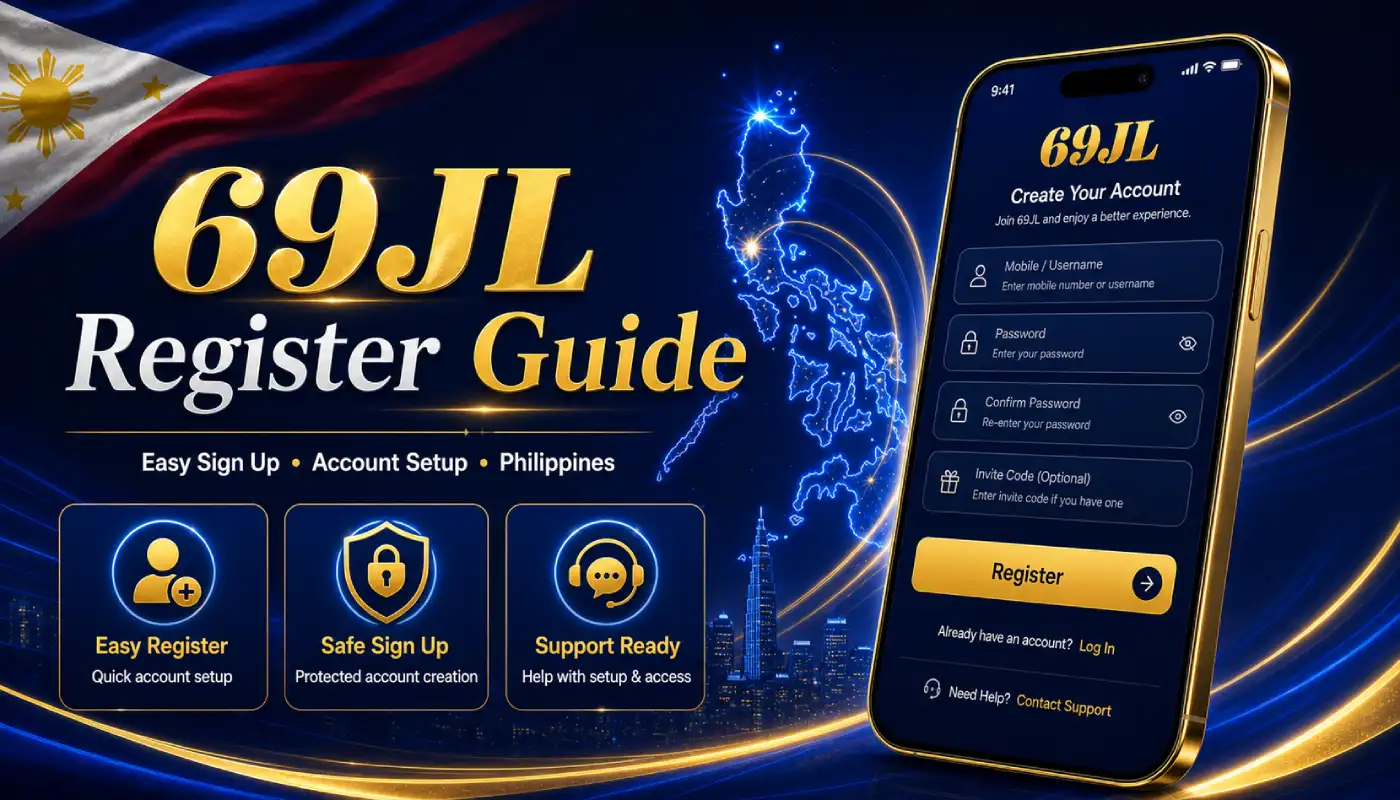
Registration is easier when your mobile number, password, verification code access, and internet connection are ready.
Use a mobile number you can access for verification code or account checks.
Create a password you can remember but do not share with other people.
Check your signal and message inbox before requesting a code.
Review all details before submitting the registration form.
Follow this flow when opening the 69JL register page through app access or mobile browser.
Use the register button or correct app access path instead of random message links.
Type your mobile number carefully and make sure you can receive the verification code.
Use a password that is not easy to guess and do not reuse public or shared passwords.
Review your information first. If the page is slow, do not tap repeatedly.
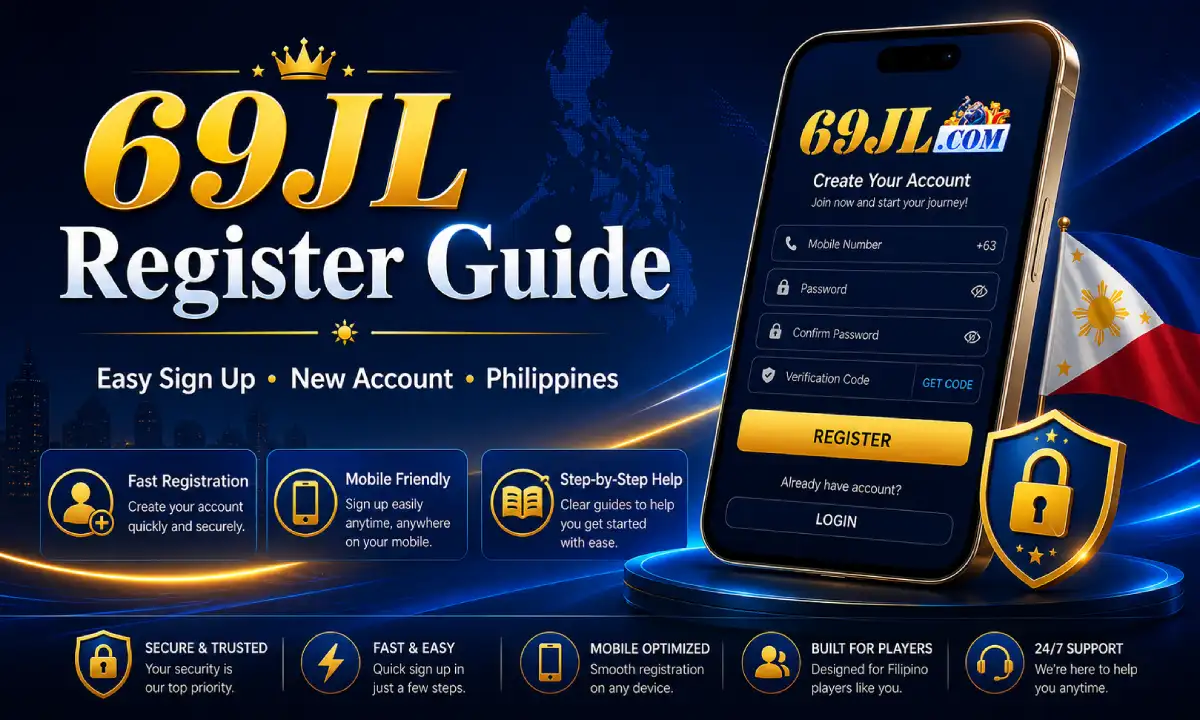
Before submitting, check your mobile number, password, verification code, and any invitation code field if it appears on the page.
If registration does not work, check these common causes before trying again.
Check whether the mobile number is typed correctly before requesting a code.
Weak signal or repeated requests can delay the verification code.
If there is a confirm password field, make sure both passwords match.
If an invitation code field appears, check whether the code is typed correctly.
Use stable Wi-Fi or mobile data before submitting registration details.
Clear browser cache or try another browser if the same error keeps showing.
Protect your login details from the beginning. Do not send passwords, OTP, or verification codes to strangers.
After registration, check login access, app loading, and account safety before using the app regularly.
Use your new account details and confirm whether the login page works.
Login guide →Open the app and make sure it does not show blank screen or repeated loading.
App guide →Save your account details privately and never share verification codes.
Read FAQ →Quick answers about registration, mobile number, verification code, password, and account setup.
Open the register access, enter your mobile number, set your password, complete any verification step, and review your details before submitting.
It may be caused by weak signal, wrong mobile number, network congestion, or repeated code requests.
Refresh the page, switch internet connection, clear browser cache, or try another mobile browser.
No. Do not share OTP or verification codes with strangers through chat, call, or messages.
Try logging in, check the app loading screen, and keep your account details safe.
